
It is 9:10 a.m. on a new account manager’s first day. Their calendar just says “Take over BetaCorp.” The handoff thread in Slack has three links to old Google Drive folders, someone forwards a six‑month‑old email with an attachment called “Strategy_FINAL_v7,” and a colleague DM’s, “The rest is in my Notion, I’ll share it later.” The kickoff call is tomorrow, and there’s still no single place to see what’s actually going on.
Direct answer
The fix is to stop rebuilding the client picture from scattered tools every time someone new joins. Give every client a standard workspace with the same layout for goals, documents, tasks, and reporting, and make that the one link everyone uses. Then use ClickUp to host that workspace, so tasks, docs, and client status live together instead of in random Slack messages and Drive folders.
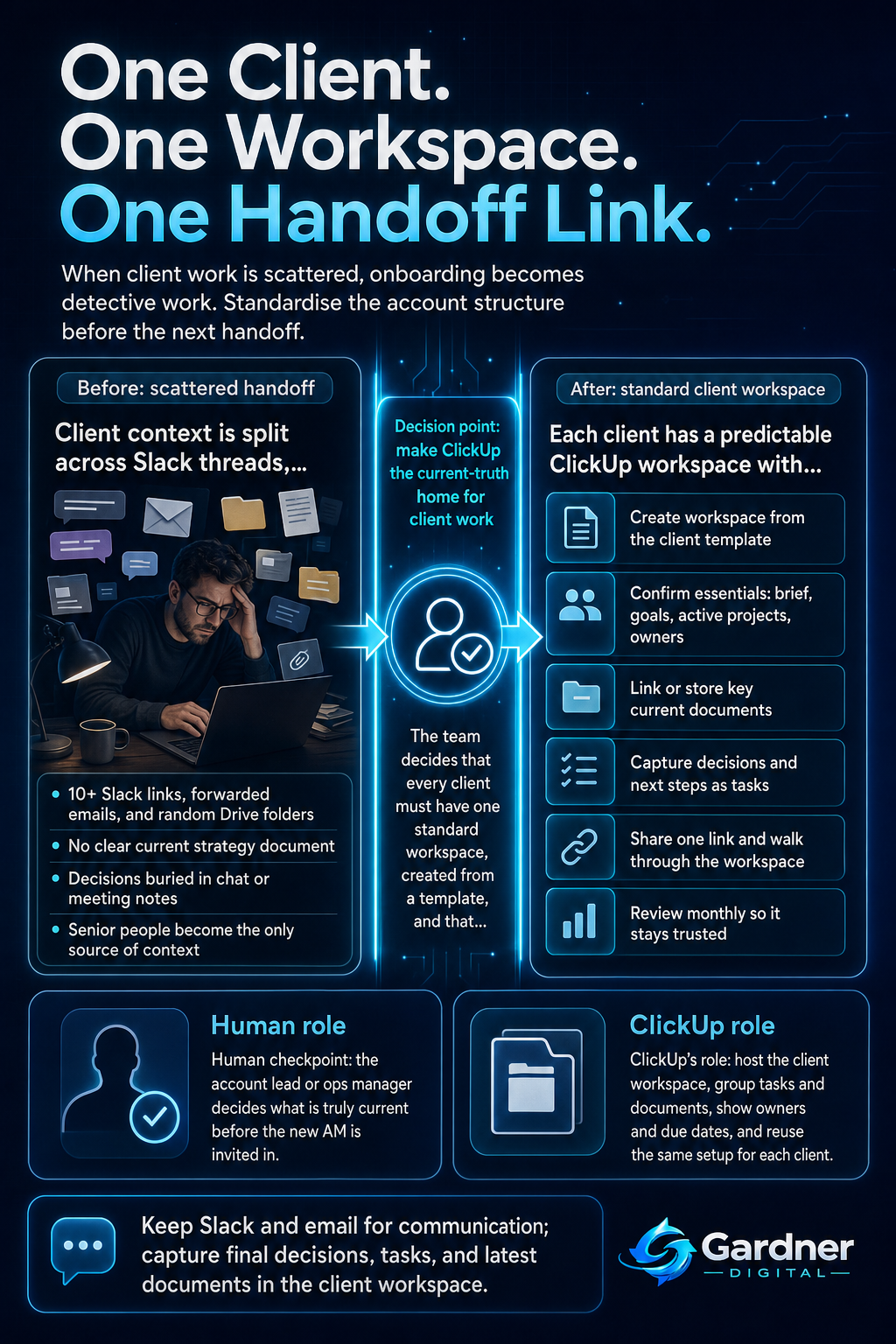
From scattered links to one client workspace
What this problem looks like
In a typical small agency, a new hire spends their first weeks doing detective work instead of client work. “Where do we keep BetaCorp’s plan?” turns into searching old email threads, combing through Slack channels, asking in standups, and guessing which Google Drive folder is the real one. Tasks live on a private spreadsheet, in someone’s personal Notion, or as half‑remembered follow‑ups from meeting notes. When the first client call comes around, the new person still feels like they’re walking into a room in the dark.
What changes when each client has one home
Before
- Onboarding means chasing 10+ Slack links, forwarded emails, and random Drive folders.
- No one can say which strategy document is current or where the latest decisions live.
After
- Every client has a single ClickUp workspace with Overview, Documents, Tasks, and Reporting.
- New hires open one link to see goals, history, and active work with clear owners and due dates.
Why the workflow breaks
This onboarding mess is usually not a people problem. It is a structure problem built up over time:
- Capture is messy. Client details land wherever is convenient in the moment: email, Slack, a quick Google Doc, or a personal notebook.
- No agreed home. There is no standard answer to “Where does anything about this client live?” so each person invents their own system.
- Handoffs are verbal. When an account changes hands, context is passed in a rushed meeting, not a structured workspace.
- History is invisible. Past decisions and mistakes stay buried in chat logs and old files, so new people repeat work and missteps.
Without a single, predictable place to look, every new account manager has to reassemble the client story from scratch. That is why onboarding feels like starting from zero every time.
Step-by-step fix
- Define the standard client layout. Decide the basic sections every client must have, for example: Overview, Documents, Tasks, and Reporting. Keep it simple enough that people will actually use it.
- Choose the one home for client work. Agree as a team that ClickUp is the home for client tasks, live docs, and status. Email, Slack, and meetings are for communication; ClickUp is for the current truth.
- Build a reusable client template in ClickUp. Create a client space or folder with the agreed lists (e.g., Onboarding, Active Projects, Backlog) and placeholders for key docs like the brief and strategy. Save this as a template you can reuse.
- Migrate one client at a time. Pick a current client such as BetaCorp. Move active tasks into ClickUp, link or store the key Google Docs there, and add a short written overview. Do not try to move everything at once—focus on what is still in play.
- Update your handoff checklist. When an account changes owner, make “Walk through the client workspace together” a required step. The senior person shows where goals, history, and open tasks live in ClickUp.
- Route new information into the workspace. After meetings, capture decisions and next steps directly as tasks in ClickUp instead of leaving them in meeting notes or Slack summaries.
- Review the workspace monthly. Once a month, quickly scan each client workspace: is the Overview up to date, are old docs archived, and are tasks reflecting reality?
First manual control point
The most important manual checkpoint is the moment a new client is signed or an account is reassigned. A human—usually the account lead or operations manager—should confirm that a client workspace exists in ClickUp, is created from the current template, and contains the minimum essentials: latest brief, current goals, top active projects, and owners. Only after that check should you invite a new account manager in or send them the workspace link. This prevents them from walking into an empty or outdated space and assuming it is complete.
Where the tool fits
| Workflow problem | Tool role (ClickUp) | Human decision |
|---|---|---|
| Client information scattered across Slack, email, and Drive. | Provide one workspace per client where tasks and key documents are grouped together. | Decide which documents are truly “source of truth” and link only those. |
| New account managers unsure where to start. | Use the Overview section and task lists to show goals, priorities, and owners in one view. | Choose which work is most important for the new person to focus on in their first weeks. |
| Decisions and next steps stuck inside meeting notes or Slack threads. | Turn decisions into tasks and connect them to the relevant client workspace and documents. | Interpret messy notes, decide what actually becomes a task, and set realistic due dates. |
| Every client setup looks different. | Reuse a simple template so each new client workspace starts with the same structure. | Agree as a team on the template fields and when it should be updated. |
What to automate now versus keep manual
Automate now
- Creating a new ClickUp client workspace from your standard template when a client is marked as signed.
- Assigning follow-up tasks in ClickUp after an onboarding call is logged, so nothing from the call is left in meeting notes only.
Do not automate yet
- Choosing which historic documents and threads are worth moving into the client workspace.
- Summarising messy Slack conversations into a clear decision and set of tasks without human review.
What not to automate yet
Leave judgment-heavy steps manual until your team has clear rules. For example, deciding whether a five‑month‑old spreadsheet still matters, or interpreting a long email chain into one simple client goal, needs a person who understands the relationship. If you try to automate those choices, you will either move too much noise into ClickUp or miss important context entirely. Start by automating predictable triggers—like creating a workspace from a template—then document how people make the trickier calls before you consider adding more automation.
When to use this workflow
This standard client workspace approach fits agencies, consultancies, and service teams that:
- Handle recurring work for the same clients, not just one‑off projects.
- Have more than one person touching a client account over its lifetime.
- See new account managers or specialists join and inherit existing clients.
- Currently rely on Slack history, email searches, or personal systems to remember what is happening.
If you recognise the pattern of sending new hires a bundle of links and telling them to “search Slack for the rest,” this workflow is a good next move.
When not to use it
This level of structure may be premature if you only have a handful of clients, one person manages everything, and handoffs almost never happen. It can also be the wrong first move if your real bottleneck is something else, such as unclear offers or inconsistent delivery processes. In those cases, start by clarifying what you actually sell and how you deliver it, then introduce standard client workspaces once you know what information and tasks you need to track every time.
FAQ
Do we need to move all old client history into ClickUp?
No. Start with the essentials: current goals, active projects, and a few key documents like the latest brief and strategy. You can link back to older Google Drive folders or email threads when needed instead of migrating everything. The aim is to make today’s work clear, not to rebuild the past in perfect detail.
How detailed should the client workspace template be?
Keep the first version simple. Include an Overview with a short description and goals, a Documents area for core files, and a small set of task lists that match how you deliver work. If people avoid filling it out because it feels heavy, it is too detailed. You can add fields later once the basic structure is working.
Can we still use Slack and email alongside ClickUp?
Yes. Slack and email are still useful for quick questions, updates, and sharing files. The key is to treat ClickUp as the place where the final decisions, tasks, and latest documents live. When something important happens in Slack or over email, someone should capture the outcome in the client workspace so new team members never have to dig through old messages to understand the account.